Slides, webinars, and meetings
Underline a figure, circle a trend, reveal one area at a time, or use the laser pointer while the slide or shared screen remains visible.
Draw over slides, highlight a result, focus attention, number steps, and explain software live without leaving your presentation or editing the original file.
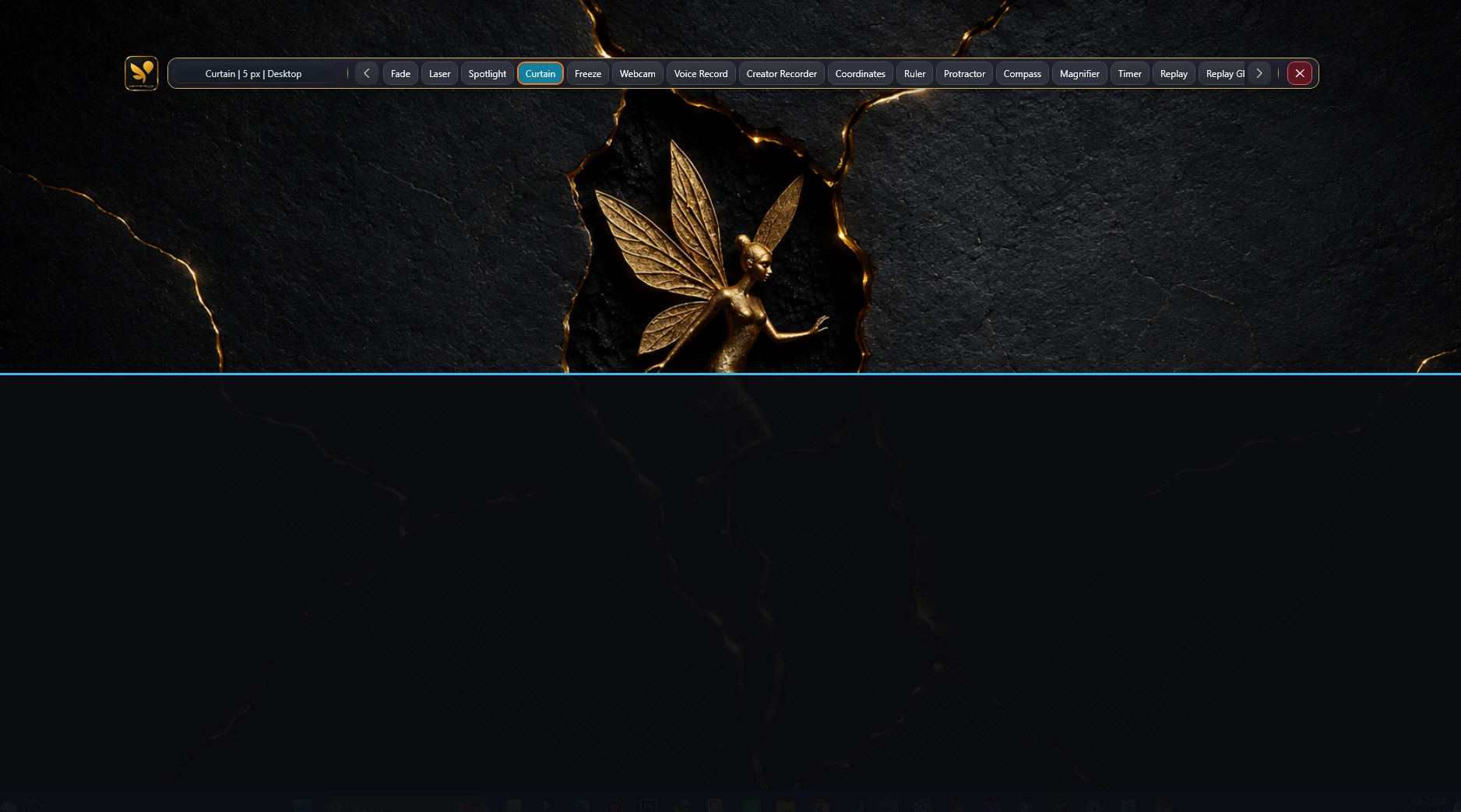
Curtain covers the screen so you can reveal content progressively, with presentation controls kept above.
Add context exactly where your audience needs it, instead of switching away from the slide, dashboard, website, or software interface you are explaining.
Underline a figure, circle a trend, reveal one area at a time, or use the laser pointer while the slide or shared screen remains visible.
Point out controls, number a workflow, highlight a status, and guide viewers through an interface without changing the application underneath.
Combine annotations, magnification, a timer, screenshots, and recording tools to make complex steps easier to follow and revisit.
Use a quick mark when that is enough, or combine focus and capture tools for webinars, training sessions, recorded demos, and detailed walkthroughs.
Mark a key idea, add a label, or turn a process into numbered steps while the source material remains untouched.
Guide attention to the exact section being discussed and temporarily reduce distractions elsewhere on screen.
Zoom into small details and explain technical diagrams, layouts, measurements, or on-screen positions more clearly.
Keep a workshop on schedule and make multi-stage demonstrations easier for viewers to track.
Save an annotated result for meeting notes, training recaps, support documentation, or follow-up material.
Record the screen locally with microphone input and an optional creator-camera overlay for reusable presentations and tutorials.
Test your chosen projector, screen-sharing, or recording mode once before the session so the overlay appears exactly as intended.
Prepare the slides, dashboard, website, document, video, or application you want to present, then launch OS Pen (On-Screen Pen).
Start the projector, meeting, or recording with a mode that includes the screen-level annotation overlay.
Add temporary marks and focus cues as you speak, then clear them or save a screenshot when the explanation is complete.
Open OS Pen above your presentation, choose Pen, Highlighter, Shapes, Text, or a focus tool, and annotate while the original content remains unchanged underneath.
Yes. OS Pen works as a screen-level annotation layer over presentations, documents, browsers, videos, desktop software, and other Windows content.
Yes. Use Spotlight, Curtain, Laser Pointer, Magnifier, step numbering, and the session timer to direct attention without adding permanent marks.
That depends on the meeting or recording app's capture mode. Choose a mode that includes screen overlays and test it before presenting. Sharing the full display is often the clearest option.
You can capture annotated results as screenshots, create short GIFs, export supported work to PDF, or use recording tools for a reusable walkthrough.
Begin with free essential annotation tools, then compare plans when you need the complete presenter toolkit.