Live online classes
Underline definitions, circle an answer, number a process, and point to the exact area being discussed while the class material remains visible.
Write over lessons, slides, websites, videos, diagrams, and live demonstrations without leaving the material you are teaching. Move from a quick highlight to a full whiteboard whenever the explanation needs more space.
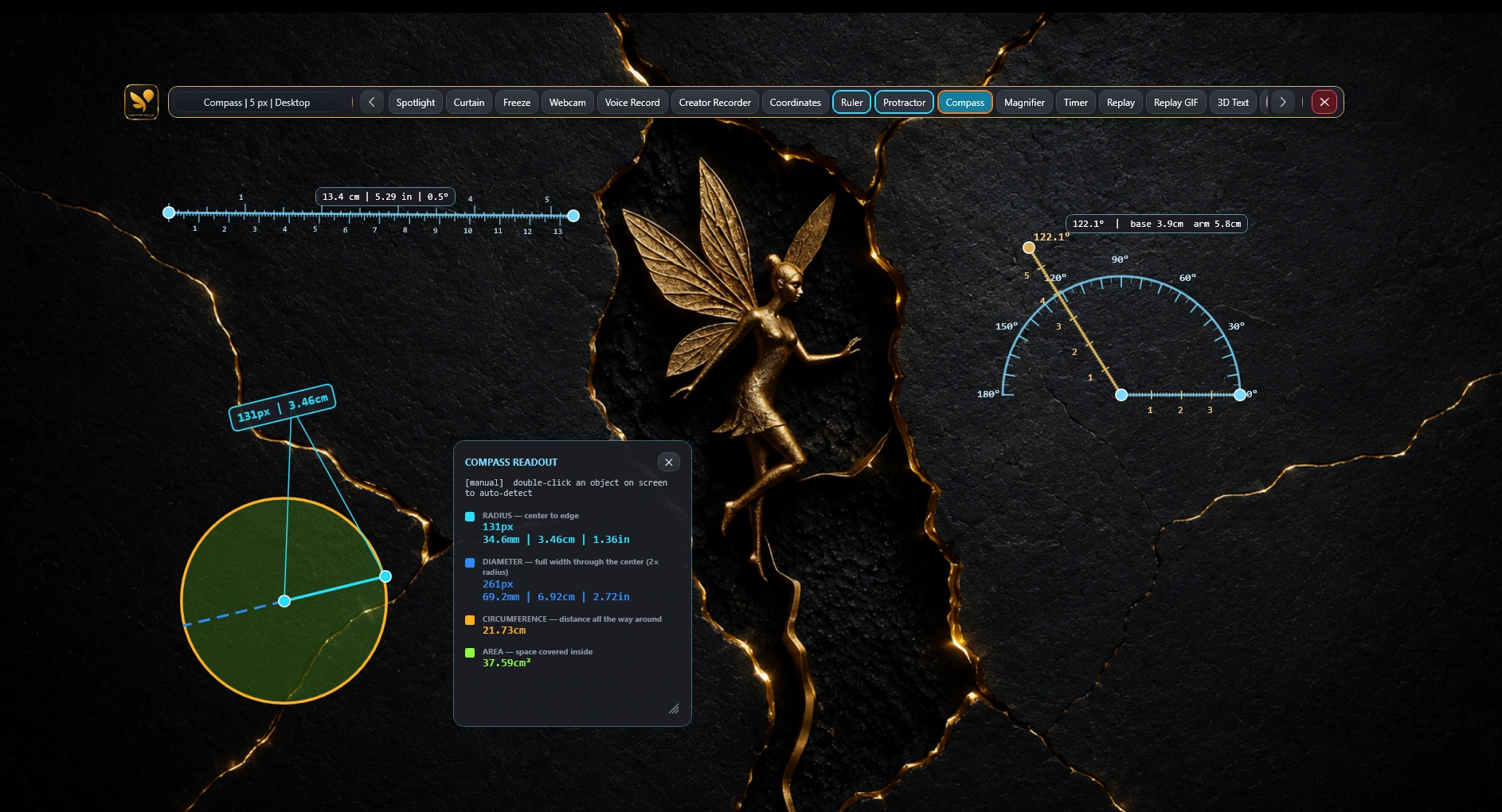
Keep annotation tools available while your lesson stays on screen.
Your students see the material and the reasoning together—without repeated switching between the lesson, a separate drawing app, and a screenshot tool.
Underline definitions, circle an answer, number a process, and point to the exact area being discussed while the class material remains visible.
Use a ruler, protractor, compass, coordinates, shapes, and a grid whiteboard for explanations that need more precision than freehand drawing.
Annotate while demonstrating a topic, capture the marked result, create short GIFs, or use Creator Recorder (Beta) for local screen and microphone recording.
Start with the simplest tool for the moment, then add focus, geometry, board, capture, and recording tools when the lesson calls for them.
Mark important ideas in real time and organise multi-step explanations so students can follow the sequence.
Move from annotating a slide to working through a fresh example without opening another application.
Teach geometry, diagrams, graphs, and measurements with visual tools designed for structured explanation.
Control what students focus on and keep a live lesson or timed practice session moving.
Turn part of the lesson into a recap, answer sheet, visual explanation, or follow-up resource.
Host on Windows and let supported devices on the same local network join a shared annotation session.
Test your chosen screen-sharing or recording mode once before class so the annotation overlay appears exactly as intended.
Open the slides, website, document, video, or teaching app you plan to explain, then launch OS Pen (On-Screen Pen).
Start your meeting, class, or recording using a capture mode that includes the OS Pen overlay.
Write as you teach, erase temporary marks, switch to the whiteboard when needed, and save useful explanations as screenshots.
Open OS Pen's floating toolbar, choose Pen or Highlighter, and write over the lesson, slide, webpage, video, diagram, or other material already visible on your Windows screen.
Yes. OS Pen includes a whiteboard with background and grid options plus ruler, protractor, compass, coordinates, shapes, text, and numbering tools.
No. You can annotate with a mouse or trackpad. A touchscreen or compatible stylus can make handwriting feel more natural, but it is optional.
That depends on the meeting or recording app's capture mode. Choose a screen-sharing mode that includes overlays and test it before class. Sharing the full display is often the clearest option.
Yes. Pen, Eraser, and Screenshot are available as free essentials without an account. A verified-email trial unlocks the complete toolset without requiring a credit card.
Begin with free essential annotation tools, then compare plans when you need the complete teaching toolkit.