📐
Geometry lessons
Construct and discuss lines, angles, arcs, and diagrams while learners follow the process in real time.
Measure, demonstrate angles, draw arcs, read live coordinates, and magnify small details with precision tools designed for classrooms, whiteboards, CAD walkthroughs, and technical presentations.
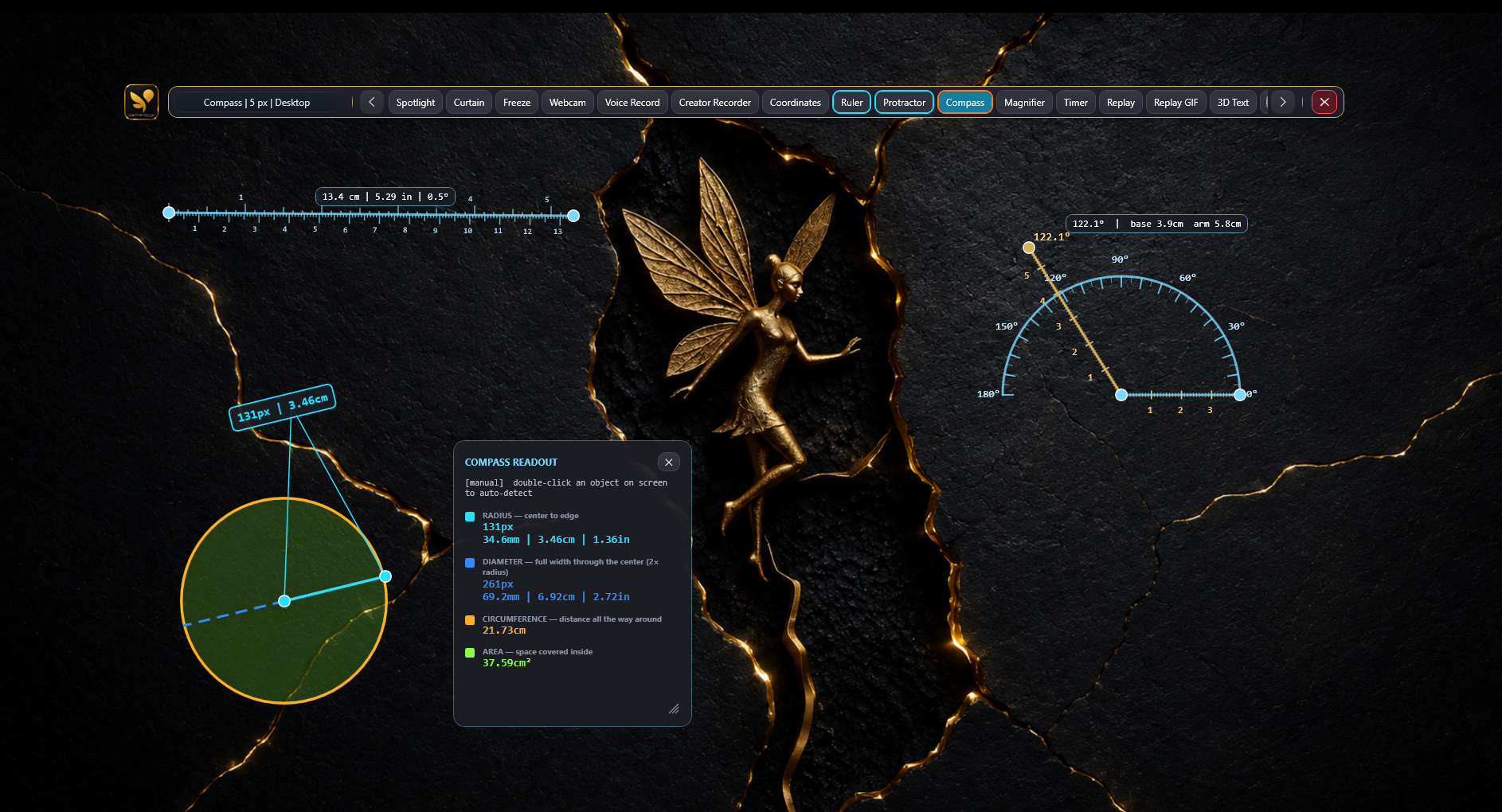
Use precision instruments directly over the screen or whiteboard.
Combine precision instruments with ink, shapes, text, the whiteboard, and focus tools instead of switching between separate apps.
Construct and discuss lines, angles, arcs, and diagrams while learners follow the process in real time.
Point to dimensions, align visual explanations, and magnify small interface or drawing details.
Use live coordinates and magnification to explain positions, layouts, and pixel-level details more clearly.
Use the right visual instrument for the explanation, then combine it with normal annotation or whiteboard tools.
Guide straight lines and measurements while working over supported Windows content or the whiteboard.
Demonstrate and construct supported angles directly where the audience is looking.
Create supported arcs and circular constructions for geometry and technical explanations.
Keep supported lines and constructions aligned to consistent angles for cleaner visual results.
Track on-screen positions while drawing, reviewing an interface, or explaining a layout.
Inspect small elements and pixel-level details without losing the surrounding context.
Open the content, choose the right precision instrument, and combine it with annotations that explain the result.
Open a diagram, whiteboard, CAD view, lesson, image, or interface and launch OS Pen.
Select the ruler, protractor, compass, coordinates, snap-to-angle, or magnifier for the task.
Add ink, labels, shapes, or focus cues, then save the supported session or capture the visual result.
Yes. OS Pen includes supported ruler and protractor tools for Windows, along with a compass, snap-to-angle, coordinates, and magnification tools.
Yes. Teachers and trainers can use the ruler, protractor, compass, drawing tools, and whiteboard together for geometry and technical explanations.
Snap-to-angle helps align supported constructions to consistent angles, making diagrams and demonstrations easier to control.
Yes. Supported precision tools include a live coordinate readout that helps identify on-screen positions while drawing or demonstrating.
Yes. The magnifier supports close inspection of small interface elements, diagrams, layouts, and pixel-level details during supported Windows workflows.
Download OS Pen and compare plans for the complete ruler, protractor, compass, whiteboard, and presentation toolkit.